How to fix Night Shift on dual monitors (Mac)
A step-by-step walkthrough to get consistent, warm color temperature across every screen on your desk.
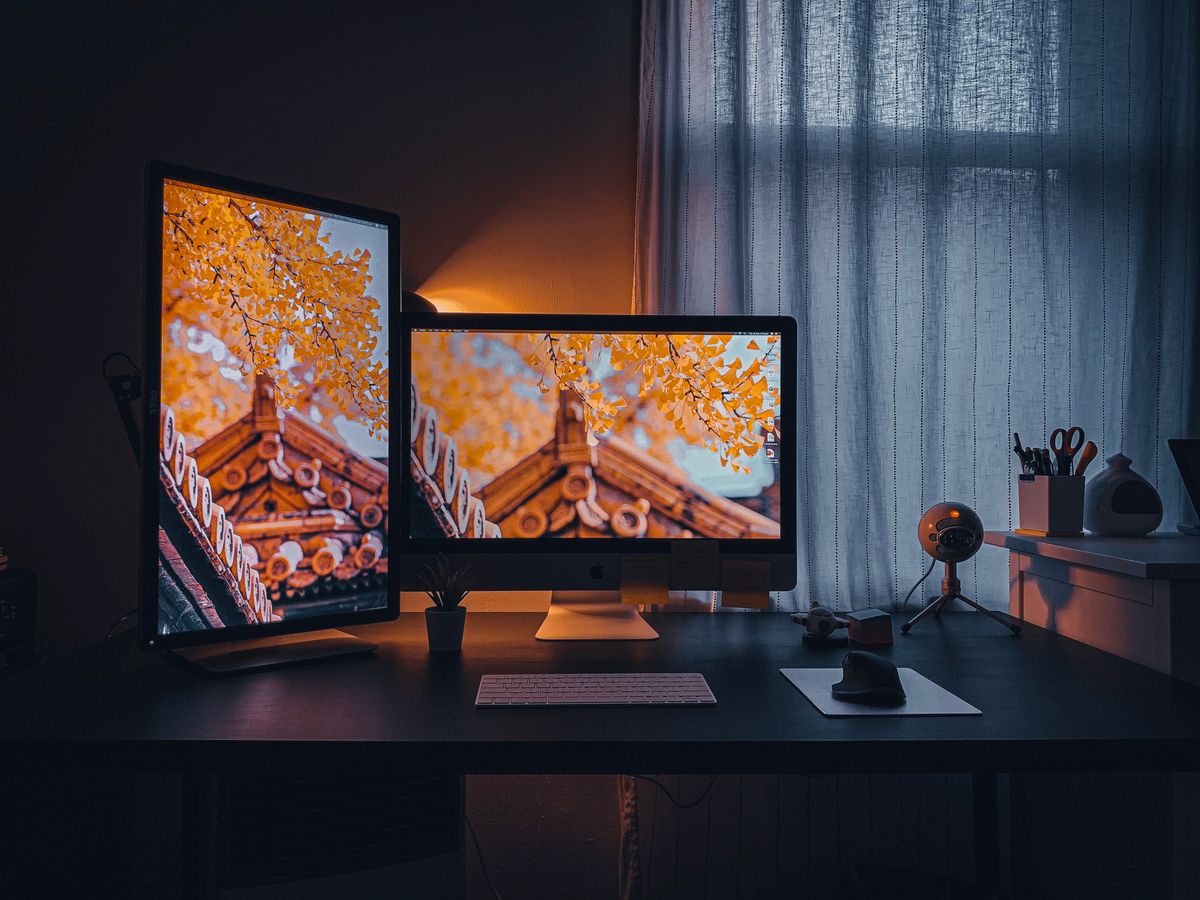
The goal: both displays at the same warm temperature, automatically.
Step 1 — Confirm the problem
Open System Settings → Displays → Night Shift and turn it on manually. Look at both screens side by side. If the built-in warms but the external stays blue, you have the standard macOS limitation — not a hardware fault.
Step 2 — Why the built-in tricks fail
Mirroring displays, toggling Night Shift per screen, or fiddling with color profiles won't reliably warm an external monitor. macOS just doesn't expose a per-external Night Shift control that sticks.
Step 3 — Use a system-wide warmth tool
Install Nightwarm, then set a warmth level (or tap a preset like Warm or Very Warm). It applies the same color temperature to every connected display at once — built-in, HDMI, DisplayPort, or USB-C.
Plug in a new monitor and it's warmed within a second, no re-calibration.
Step 4 — Automate it
Turn on Nightwarm's sunset-to-sunrise schedule so warmth ramps up automatically each evening and eases off at dawn. Set it once and every screen follows along for good.